Updated 16 October 2026.
To migrate WordPress to EmDash, prepare a separate EmDash site, import a WordPress XML export or connect through the EmDash Exporter plugin, then check content, media, features and URLs before switching the live site. The official migration instructions cover both import routes. Your design and plugin-dependent features also need rebuilding.
EmDash 1.0.1 imported all 12 posts and four pages from our travel-blog XML export, but media, schedules and several formatting details needed repairs. EmDash 1.3.0 was published on 15 October 2026, with further migration fixes after versions 1.1 and 1.2.
What changed in EmDash 1.1, 1.2 and 1.3?
Version 1.1 improved redirect matching and menu cache invalidation, including after imports, and added a publishing calendar. Version 1.2 added scheduling support for imported future posts, preserved button links, expanded upload-link rewriting beyond image blocks and reduced media batch sizes for Workers.
The 1.2 converter fixes also preserve simple Classic Editor tables with text cells, formatting and links. Tables with captions, merged cells, images or other complex content still need inspection.
In version 1.3, dynamic WordPress blocks such as custom plugin blocks, reusable block references and Latest Posts become HTML blocks containing their original block comments instead of disappearing. These placeholders display no content on the public site. Open their HTML tab in the editor to identify what needs rebuilding. Inside an unrecognized container such as a Query Loop, inner dynamic blocks get individual placeholders, but the container settings are not kept.
Version 1.3 also rewrites ordinary WXR links to the source site as root-relative paths, improves ACF field imports through the Exporter and corrects WXR skipped-item counts. The old permalink paths remain, so changed routes still need redirects. Links inside reusable blocks imported as sections are not rewritten.
What moves, and what still needs work?
| Item | Our EmDash 1.0.1 test | What to expect and check on 1.3 |
|---|---|---|
| Posts, pages and slugs | 12 posts and four pages imported; slugs and original public publish dates were kept. | Both routes map content into collections. Compare counts, dates and public routes with the source. |
| Drafts and future posts | The future post became a draft. | Scheduling support arrived in 1.2. Inspect future dates, calendar entries and errors, and review private and pending entries. |
| Authors | Authors became mapped-user or guest bylines. | Map editing access separately from public author credit. |
| Categories and tags | Six categories and 15 tags arrived; category hierarchy was flattened. | Check hierarchy and assignments. Custom WXR taxonomies need matching definitions; the Exporter can create definitions. |
| Rich text and buttons | Most blocks converted; buttons lost links and a table lost its caption. | Gutenberg becomes Portable Text. Button links and simple Classic tables improved in 1.2; dynamic block placeholders arrived in 1.3. |
| Media | All downloads failed because the source was localhost. Some images still displayed from WordPress. | Copy reachable files into EmDash storage and check rewritten URLs. |
| Comments and menus | No comments or menus imported through XML. | Use Exporter 1.2.0 or later for supported comment and menu imports. |
| SEO and custom fields | Yoast title and description fields did not arrive through XML. | The Exporter supports Yoast/Rank Math SEO and compatible custom/ACF fields. WXR analysis does not import arbitrary post meta. |
| Site identity | Site title, tagline and widgets did not arrive through XML. | The Exporter offers identity switches; logo and favicon import need Exporter 1.2.0 or later. Rebuild widget placement. |
| Themes, plugins and shortcodes | Shortcodes remained visible text; the site used a new theme. | Rebuild the design in Astro and replace or port plugin behavior. |
| URLs and redirects | Routes changed and no redirects were created. Ordinary internal links still used the old domain. | WXR link rewriting in 1.3 keeps old paths. Map changed routes and inspect section links separately. |
The WordPress migration reference details field, taxonomy and Exporter support. Its content import reference describes media copying and retry behavior.
A WordPress theme must be rebuilt as a complete Astro project with routes, layouts and components. The theme-porting instructions explain how to carry over the design, menus and widgets. WordPress plugins must be replaced or ported; the plugin-porting instructions separate content models, stored data and runtime behavior. A plugin that only defines post types or fields may become an EmDash collection.
1. Prepare the WordPress site
Back up the database and wp-content/uploads. Record post types, statuses, authors, categories, tags, custom fields, menus and essential plugin features. Save the permalink structure, canonical domain and existing redirects. You also need an EmDash administrator account with import:execute permission, as described in the migration prerequisites.
Save representative URLs: a long article, gallery, table, embed, form, private entry and future post. Record their expected behavior and keep an export of important SEO titles and descriptions. Decide which features must work before launch.
Give WooCommerce stores and member sites a separate migration plan. Account for products, carts, checkout, payments, orders, subscriptions and access rules where relevant. Porting a WooCommerce theme carries over presentation; it does not reproduce commerce behavior.
2. Export, or connect the EmDash Exporter
Route A: WordPress XML export
In WordPress, open Tools → Export, select All content and download the XML file. The WordPress export documentation describes the WXR format. This content export does not replace a database and uploads backup. It contains attachment information and source URLs, not the media files themselves.
Route B: connected Exporter
Install the EmDash Exporter on WordPress and check its version under Plugins. Exporter 1.2.0 or later is required for comments, menus, the logo, the favicon and migration keys. Earlier versions finish without those extras and do not report them as missing, according to the Exporter connection instructions.
With Exporter 1.2.0 or later, open Tools → EmDash Migration, generate a migration key and paste it into EmDash’s import screen. Alternatively, enter the WordPress URL and authorize the detected Exporter through WordPress application passwords. Any Exporter version supports that connection method.
Entering an ordinary WordPress URL without the Exporter only probes public REST data; it does not perform a direct import. EmDash 1.3 also identifies bot-protection challenges that interrupt Exporter requests. Resolve connection errors before continuing, and check the import summary for missing data.
3. Start an empty EmDash site
Choose the runtime and theme before importing. Use a fresh database and configure media storage. EmDash’s theme setup can retain the content model while omitting sample entries. Our EmDash hosting reference covers Node.js and Cloudflare deployment requirements.
Work on a separate protected test site with its own database and media storage. Keep copied private content behind access controls, block indexing and use test integrations without real charges, customer emails or production webhooks. The Cloudflare deployment instructions require separate preview data resources.
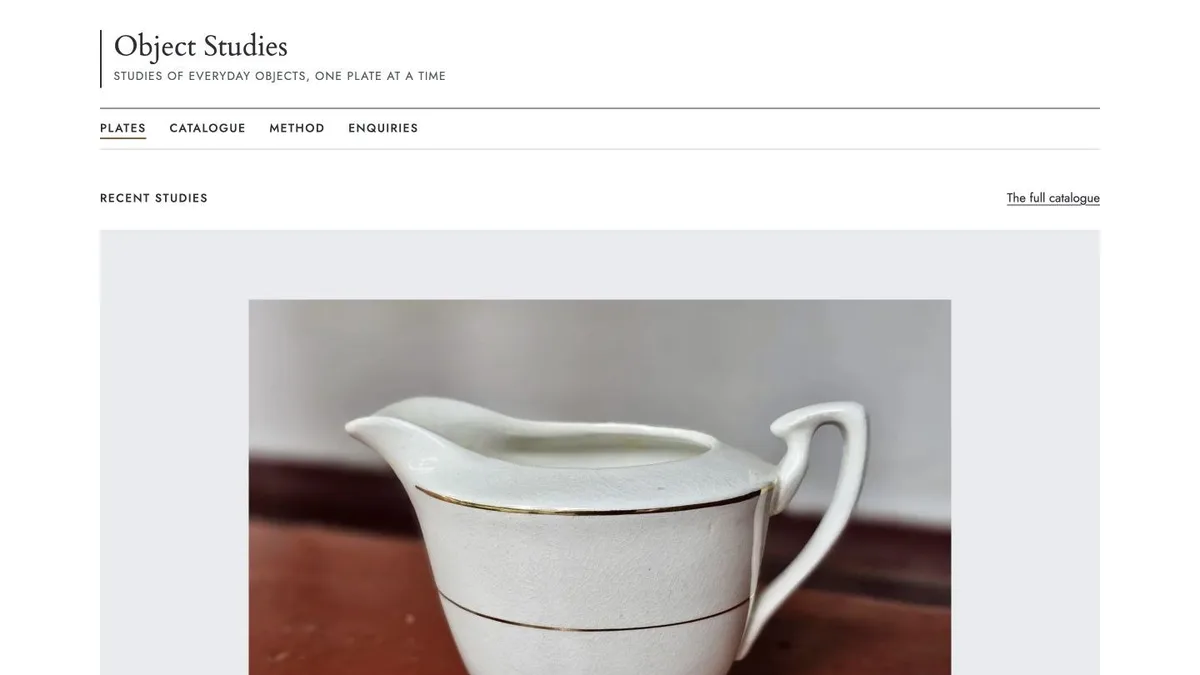
Our Astro themes with EmDash editions provide prepared designs with optional EmDash support. Choose a layout and content model that fit your site: Object Studies is an object-led portfolio, so its collections need reviewing for a blog migration. The Astro Pass includes all 40 Astro themes for $99 once if you need several designs.
4. Import and map authors
- Open Import in the EmDash admin, or visit
/_emdash/admin/import/wordpress. - Upload the WXR file or supply the Exporter credentials.
- Review each post type’s target collection and required fields. Resolve incompatible field types before continuing.
- Map authors to EmDash users, or leave them as guest bylines when they only need public credit.
- For the Exporter route, review the menu, site identity and SEO switches.
- Start the import, save its summary and inspect errors before copying media.
The import workflow creates missing compatible collections and fields. It does not change an existing field’s type to force a match. WXR reusable block entries become sections rather than ordinary collection entries.
In our 1.0.1 test, we needed to review byline names, web addresses and missing biographies after mapping. Check both public credit and editing access.
For ACF migrations, 1.3 creates fields from ACF groups assigned to a post type and stores structured values such as repeaters and relationships as JSON. Those values retain WordPress IDs or media references; they are not automatically usable EmDash relationships. Earlier collection structures remain, and rerunning an import skips existing entries. Inspect previously imported relationship, post object and user fields for whole WordPress records before using them in templates.
5. Copy media and check where it loads
Run the media step while the original files remain reachable. EmDash downloads attachments, stores them through the configured adapter and deduplicates identical file bytes. It then rewrites matching content URLs. The media copy reference distinguishes this step from importing entries.
Our 1.0.1 source ran on localhost, so media downloads were blocked as internal-host requests. Images that still appeared were loading from the old site. Source files must be reachable from the EmDash server.
- Compare media counts and inspect every download error.
- Check featured images, inline images, galleries, video, audio and download links.
- Inspect actual file URLs, alternative text and captions.
- Repair missing files before retiring the WordPress origin.
The 1.2 media fixes extend upload-link rewriting to buttons, tables, file blocks and raw HTML. Content imported before that fix is not changed automatically. In 1.3, upload links stay absolute during ordinary internal-link rewriting so media can still be fetched.
6. Check content, schedules and navigation
Compare counts by collection and status. In our 1.0.1 run, a six-image gallery converted, but a table caption disappeared, category hierarchy flattened and shortcodes remained visible. Open your representative pages and inspect those details, including mobile layouts.
The 1.2 release announcement describes scheduled-post imports. The 1.2.0 XML importer attempts scheduling when the date remains in the future and records an error if scheduling fails. Inspect every future post’s calendar entry and time zone.
Test scheduled publishing on the deployed site. Cloudflare deployments need the Cron Trigger and handler; the Node.js runtime needs a running process. If WordPress also handled content expiry, our Auto Unpublish Posts plugin can unpublish, trash or retag EmDash posts on a date; configure and test those expiry rules separately.
Review imported comments, menus, widgets and category relationships. Test drafts and formerly private content while logged out. If readers can submit comments, our Comment Spam Protection plugin applies rules for blocked words, links, language, duplicates and rate limits on your site.
7. Remove shortcodes and repair links
Search imported content for shortcodes, old domains and page-builder fragments. In our 1.0.1 test, a classic caption left visible shortcode text and buttons lost destinations. Version 1.2 fixes button-link conversion, but click every important button on the replacement site.
Inspect HTML blocks for 1.3 dynamic-block placeholders. Rebuild the original feature or remove the placeholder; preserving a block comment does not run its WordPress plugin. Review embedded HTML and third-party widgets, and keep a record of feature replacements for editors.
With 1.3 WXR imports, an old article link becomes a root-relative link with its WordPress path intact. Check that path against the Astro routes. Inspect reusable sections separately because their links are excluded from this rewriting.
8. Redirect changed URLs and restore SEO
Map every old public address to its intended destination, including posts, pages and taxonomy archives. Our test theme served /posts/slug and /pages/slug; those were its routes, not universal EmDash requirements. Align Astro routes and collection URL patterns, then add 301 redirects for permanent moves.
Our 1.0.1 pattern redirect worked without a trailing slash, but the slash-ended URL returned 404. Test both forms and relevant query-string variants. EmDash’s redirect manager and 404 log help identify missed paths. Automatic redirects for later published-slug changes do not replace the migration URL map.
Enable collection SEO under Content Types. Check titles, descriptions, canonicals, indexing directives, social images and sitemaps. Most head metadata requires EmDashHead; the HTML title needs the template to render the title returned by getSeoMeta().
Imported Yoast and Rank Math titles and descriptions are regular content fields, separate from the SEO panel. Wire those fields into the template and inspect the resulting HTML. A populated admin field alone does not establish correct public metadata.
When changing the site’s domain, use the Change domain workflow and check sign-in at the new address. Changing the Site URL is separate from redirecting old article paths.
9. Launch checklist
- Reconcile content counts, statuses, author credits, taxonomies, navigation and comments.
- Confirm essential media loads from the new storage.
- Test forms, plugin replacements and business workflows on the protected hosted site with test data.
- Crawl old URLs and check redirects, metadata, sitemaps and production indexing settings.
- Confirm private content remains private and scheduled publishing and expiry behave correctly.
- Record the test URL, the exact build or commit, the acceptance results, the existing production deployment, and the steps for deployment and rollback.
- Agree a short editing freeze, account for changes since import and take final backups.
- Launch the tested build and scoped content changes without overwriting live orders or newer content with an entire test database.
- Monitor errors and the 404 log, retaining WordPress for rollback until the replacement runs successfully.
For EmDash recovery, keep a complete database recovery point, separate media backups and the matching application artifact. Back up the EMDASH_ENCRYPTION_KEY rotation list separately when encrypted plugin settings are used. EmDash’s JSON backups cannot be restored by EmDash and do not replace a full recovery point. Follow the backup and recovery instructions and rehearse recovery in an isolated environment.
A repeated import is not content synchronization. Existing entries are matched by collection, slug and locale; later WordPress edits do not update skipped entries. Changed slugs can create duplicates. After interruption, rerun analysis with skip existing enabled and inspect partial results before proceeding.
When to wait
Wait if commerce, memberships, complex custom fields or page-builder workflows still lack working replacements. EmDash is not a suitable move yet when essential business behavior remains unresolved. An imported article collection does not establish that checkout, member access or plugin-owned records work.
If you want the move done for you, our WordPress to EmDash migration service can assess your site and agree what will move.
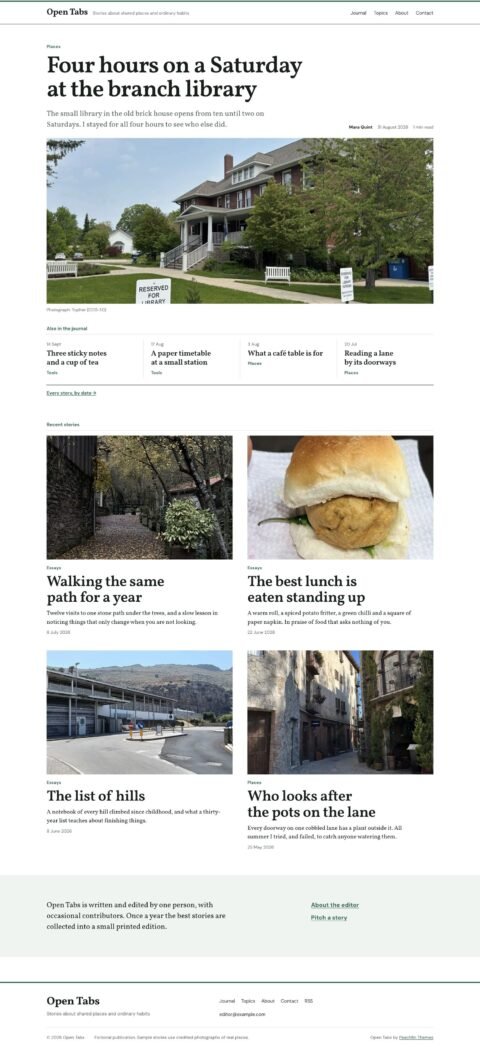 Open TabsEditorial journals with panoramic lead stories
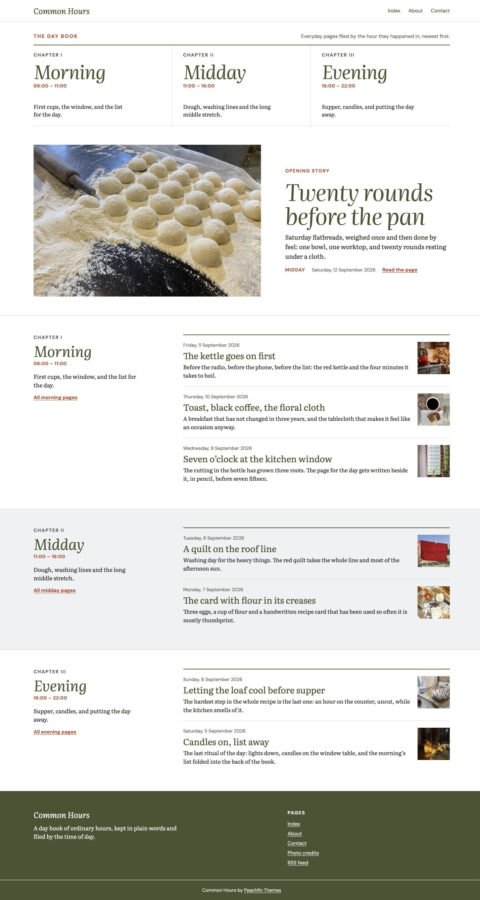 Common HoursPersonal blogs with chapter indexes
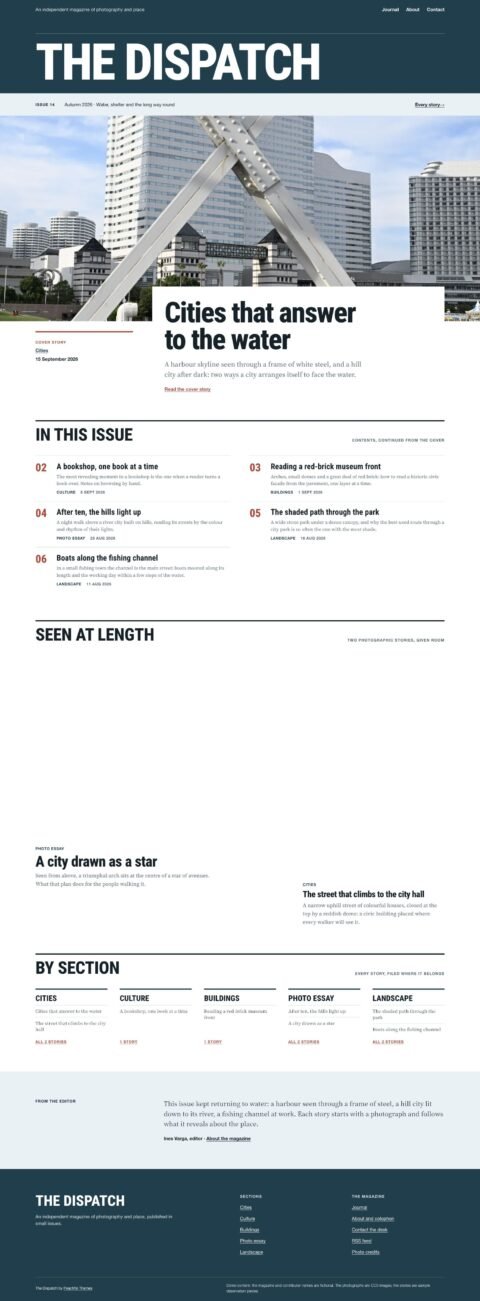 The DispatchPhotographic magazines with cover stories
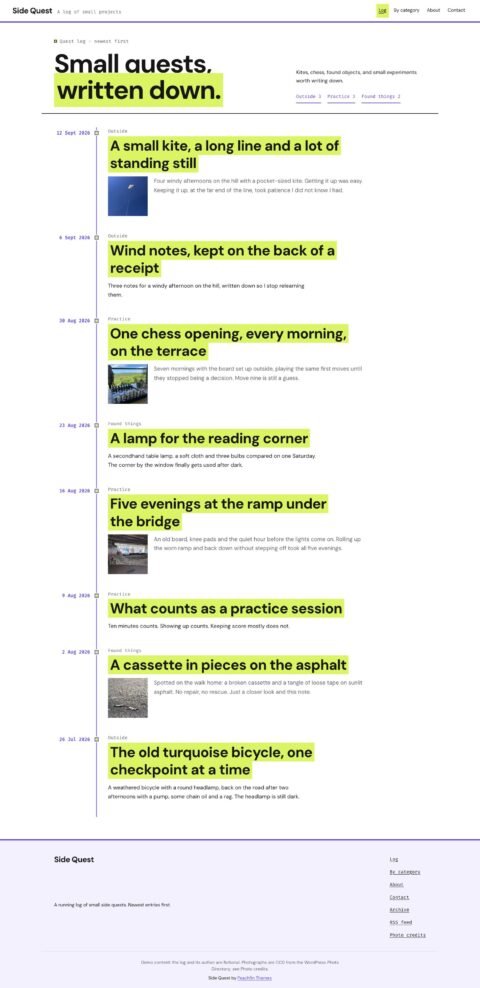 Side QuestPersonal journals with dated timelines
Browse all 40 Astro themes with EmDash editions, or choose the Astro Pass for the full Astro collection.
Frequently asked questions
Do I need the EmDash Exporter plugin?
No. You can upload a WordPress WXR XML export. The Exporter supports additional settings, custom fields and SEO values; comments, menus, the logo and the favicon require Exporter 1.2.0 or later.
Does the XML file contain my images?
No. It contains attachment information and source URLs, not image files. Keep the original files reachable until the media copy finishes and the new URLs work.
Do scheduled posts stay scheduled?
Our EmDash 1.0.1 XML test imported the future post as a draft. Version 1.2 added scheduling support for future-dated imports. Check each imported schedule, its time zone and any errors, then test scheduled publishing on the deployed site.
Can I turn off WordPress as soon as the import finishes?
Keep WordPress available until content, media, redirects and the replacement site work correctly. Retain the original deployment and backups until the new site has run successfully in production and you no longer need to roll back.