
Updated 18 October 2026.
To install a Ghost theme, you need a Ghost 6 site with owner or administrator access, the downloaded theme ZIP and, for the sample content, the separate demo import ZIP. These steps use Ghost 6.69 on Ghost(Pro) or a self-hosted Ghost 6 site, with Peachfin themes as the examples.
Steps to install a Ghost theme and import its content
1. Upload and activate the theme
Open Ghost Admin → Settings. Under Site, find Theme and click “Change theme”. Settings → Design & branding → Change theme opens the same library. Click “Upload theme”, select the theme ZIP, wait for the upload, then click “Activate theme”.
The Theme section lists it under “Active theme”. Keep the downloaded filename because Ghost names uploaded themes after their ZIP files. Ghost validates the upload; every Peachfin Ghost theme passes with zero errors and zero warnings.
2. Choose the theme settings and branding
Open Settings → Design & branding → Customize. The Theme tab contains the theme’s palettes, layout options and display toggles. Each theme has 15 to 20 settings, explained in its README. The Dispatch, for example, offers Front page, Cover and contents, and Latest first layouts.
The Brand tab holds the publication icon, logo, cover, accent color and typography choice. Follow the README’s accent setting instructions to apply your site color. The Dispatch’s Night palette changes the front page to a dark background.

3. Set up navigation and template pages
Open Settings → Navigation for the Primary and Secondary menus. The Dispatch uses Latest, Sections, Archive, Masthead, About and Contact in its primary menu, with section tag links in the secondary menu.
For a manual setup, create an Archive page, set its slug to archive, choose Archive under Template and publish it. Follow the README for other template pages. If you are importing the demo, its pages arrive with their templates and menus, so avoid creating duplicate pages first. Check those assignments after importing.
4. Delete the starter content
A new Ghost site contains a “Coming soon” post and an “About this site” page. Open them in Posts and Pages and delete both before importing. Removing the starter About page frees /about/ for the imported page and keeps the supplied navigation working.
5. Import the demo ZIP
Go to Settings → Advanced → Import/Export → Migration tools → Import tab → “Universal import”. Select your theme’s demo ZIP, such as the-dispatch-demo-import.zip, and wait for completion. The importer accepts JSON or ZIP files containing posts and settings. It is separate from Labs.
The import adds fictional posts, template pages, tags, photographs and locked demo authors with placeholder addresses. It also sets the title, description, accent color, navigation and commenting for all members, and clears the supplied social accounts. Theme settings remain separate.
6. Check photographs and search
Open the home page and several posts. Confirm that their photographs appear, then use the magnifier in the header to search for a sample title. The demo ZIP holds photographs at its root so Ghost stores them under /content/images/, matching the paths in the imported posts.
7. Replace the sample content
Edit or delete the sample posts, pages and tags. Set your title and description in Settings → General settings → Title & description. Add your social accounts, logo and accent color, replace sample contact details, and adjust the menus.
To take over the demo authors’ posts, delete each demo user in Settings → Staff; Ghost moves their posts to the owner. Ghost does not import snippets. Save reusable cards, such as Side Quest’s facts strip, as snippets yourself using the README instructions.
Members, newsletters and paid tiers
Settings → Membership contains Access, Tiers, Signup portal, Welcome emails and Newsletters. Access controls who can sign up and comment. When signup is open, the themes display Sign in and Subscribe, with Account for signed-in members. Invite-only sites show Sign in only.
Set each post’s access to Public, Members only, Paid-members only or Specific tiers. The themes style access labels and the call to action where restricted content begins. Specific-tier posts name their tiers, and native comments appear when commenting is enabled.
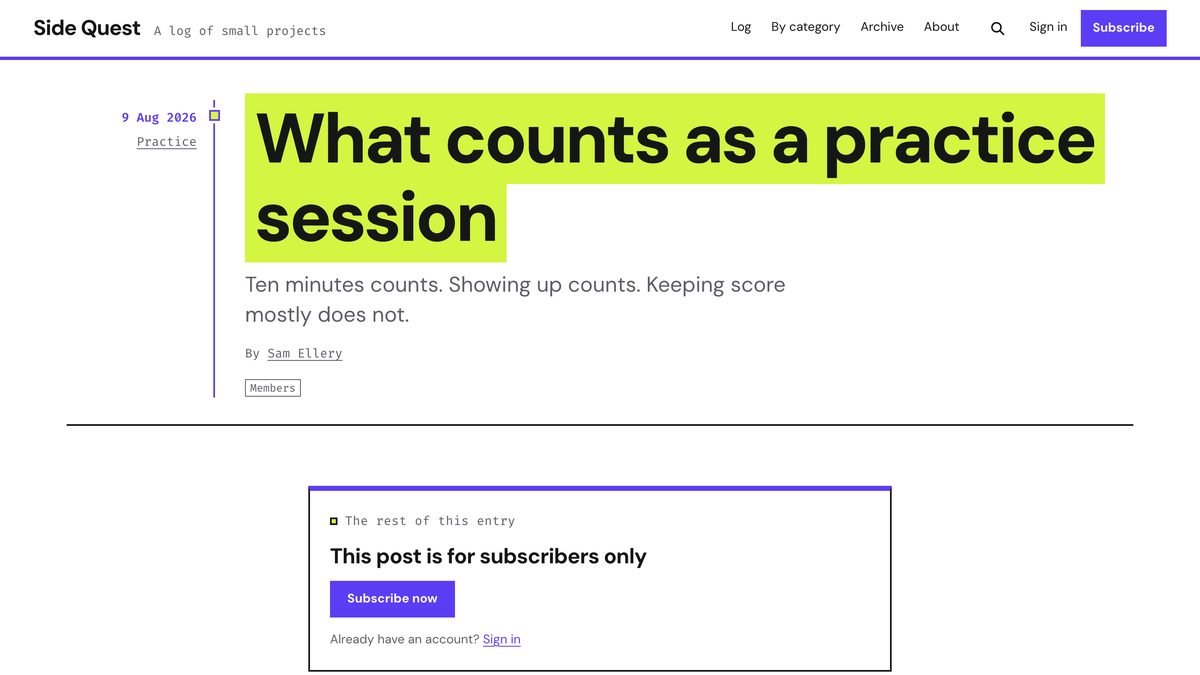
For paid subscriptions, open Settings → Membership → Tiers → Connect with Stripe. Portal handles checkout without additional theme setup. Configure newsletters in Ghost; the demo import supplies neither newsletters nor subscribers.
Common problems
The upload contains the wrong ZIP
Upload the theme ZIP through “Upload theme”. Send the separate demo content ZIP through “Universal import”. The content archive cannot serve as an installed theme.
The About page has an /about-2/ address
The starter page occupied /about/ during import. Remove the unwanted starter page, give the imported About page the about slug and check its menu link.
The imported photographs are missing
Import the supplied ZIP rather than the separate JSON file. JSON alone brings text without photographs. Image files must end up under /content/images/ with the exact filenames referenced by the posts.
The import changed site settings
The demo includes branding and navigation settings. Restore your title, description, accent color, menus and social accounts after importing, and review commenting access.
Subscribe buttons or paid labels differ from expectations
Check signup access in Membership, the post’s access setting and the theme’s signup toggles. Invite-only sites show Sign in only. Paid subscriptions also require Stripe connected under Tiers.
Choose a design from the Ghost themes collection, or compare the layouts in Ghost themes for newsletters, magazines and portfolios.
Frequently asked questions
Which Ghost version do these themes require?
Every Peachfin Ghost theme requires Ghost 6.0 or later. These steps use Ghost 6.69 and work on Ghost(Pro) and self-hosted Ghost 6 sites.
Do I need to import the demo content?
No. You can activate the theme and use your own content. Follow its README to create the required template pages and navigation.
Does the demo import include subscribers or newsletters?
No. It contains fictional content, photographs, demo authors and site settings. Members, newsletters, comments and Stripe data are not included.
Peachfin is not affiliated with Ghost or Stripe.